Tap a torrent. It lands on your NAS.

DropBay sends torrent files and magnet links from your Android phone to Synology Download Station. Choose the files you want and the folder they go to, then follow every download live.

Get it on Google Play

For Android 8.0 and newer. Works with Synology NAS units running DSM 7 and Download Station.

From your phone to your NAS in three steps

  1. Sign in to your NAS

    Type your NAS's address, or pick it from the Synology units DropBay finds on your Wi‑Fi, and sign in with your DSM account.

  2. Open a torrent or a magnet link

    Tap a .torrent file, open a magnet link in your browser, or share a link to DropBay from any app.

  3. Choose the files and the folder

    Untick what you don't need, pick where it goes and tap Add. Download Station does the rest, even with your phone switched off.

Pick only the files you want

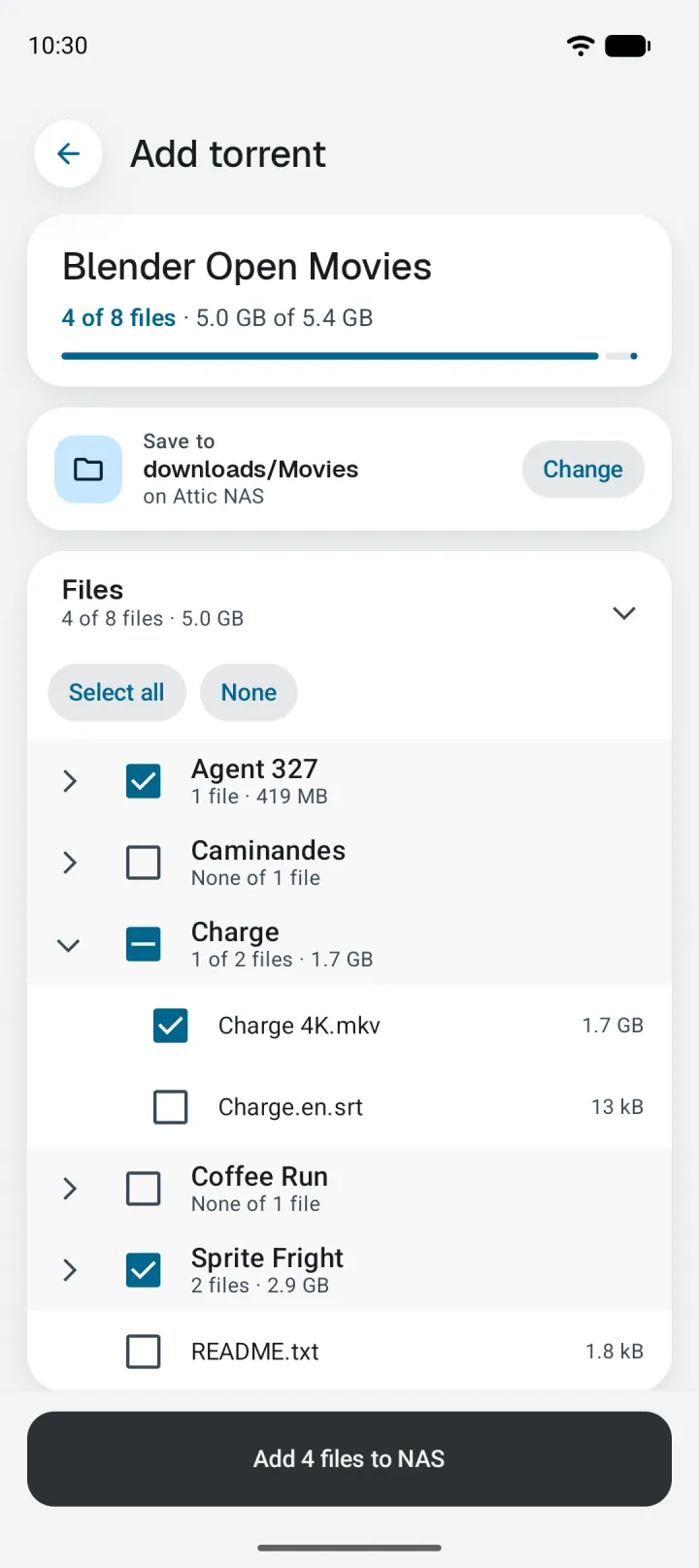
A torrent often carries more than you came for: samples, extras, subtitles in languages you don't read. Untick them before anything downloads, and choose the folder on your NAS on the same screen.

  • Folders in the torrent open and close, so big ones stay readable
  • Browse your NAS's shared folders to choose where it lands
  • The button says exactly what happens: "Add 4 files to NAS"
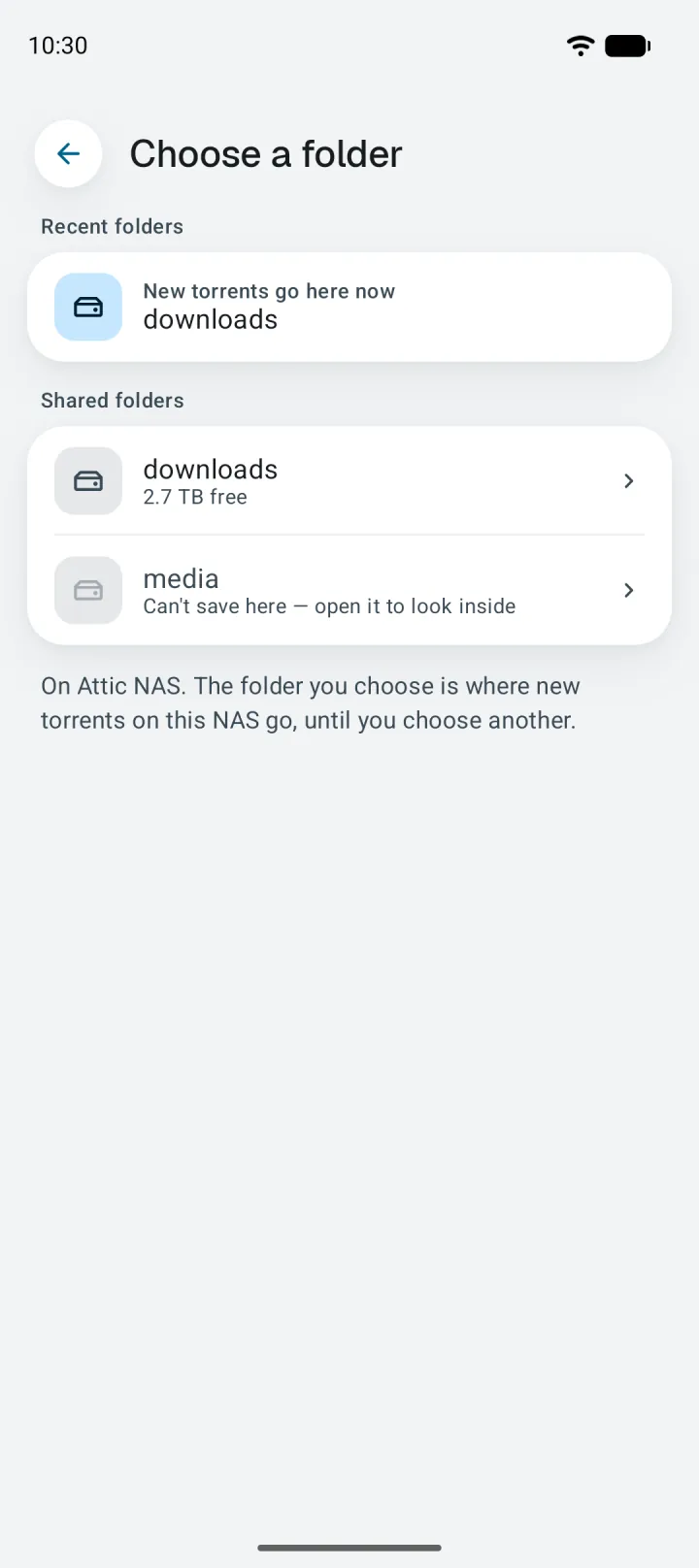
Choose a folder: the shared folders on Attic NAS, with free space shown under downloads.
The Add torrent screen: Blender Open Movies with 4 of its 8 files ticked, saving to downloads/Movies on Attic NAS.

Magnet links and web links too

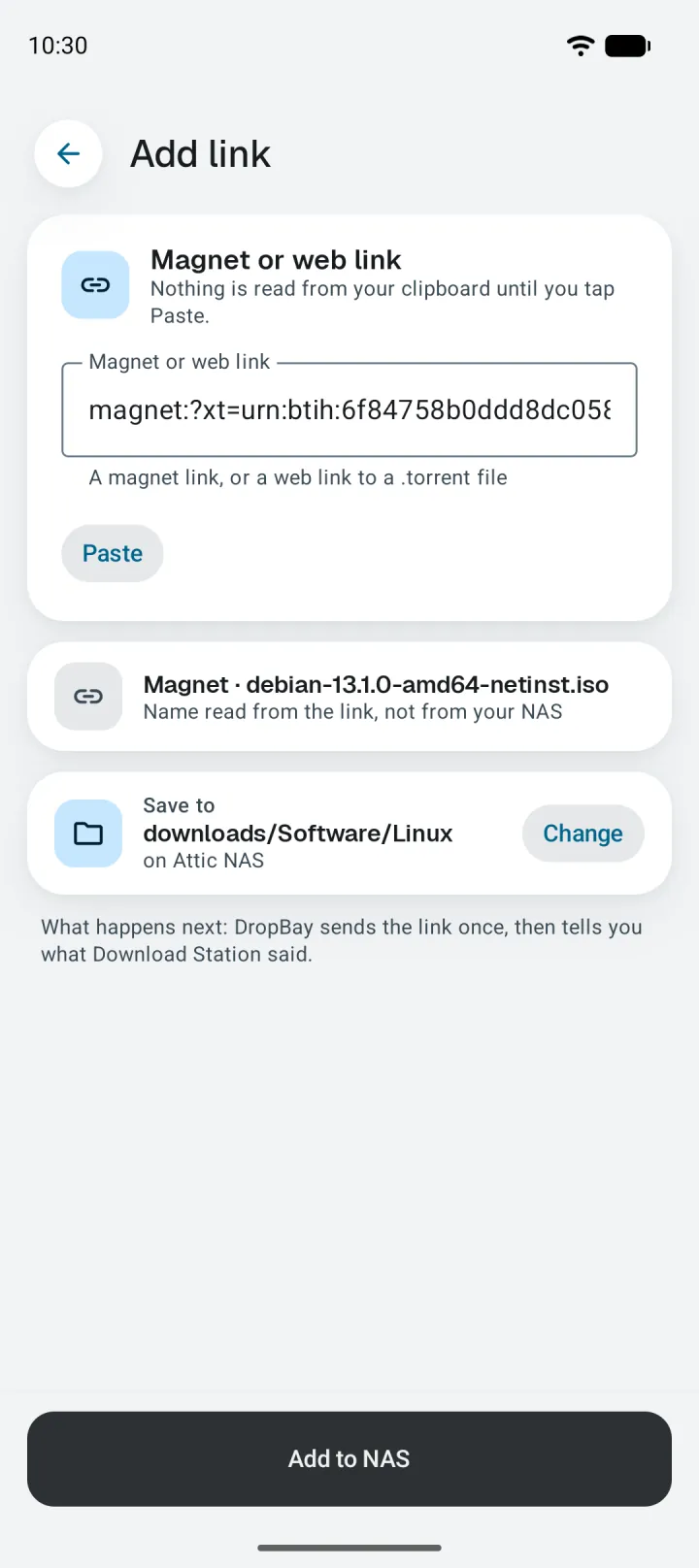
Open a magnet link in your browser and DropBay picks it up. Share one from another app, or paste it in. A web link to a .torrent file works the same way.

  • Nothing is read from your clipboard until you tap Paste
  • The name comes from the link itself, before anything is sent
  • Choose the folder here too, then add it to your NAS
The Add link screen with a Debian magnet link pasted in, saving to downloads/Software/Linux.

Every download on your NAS, live

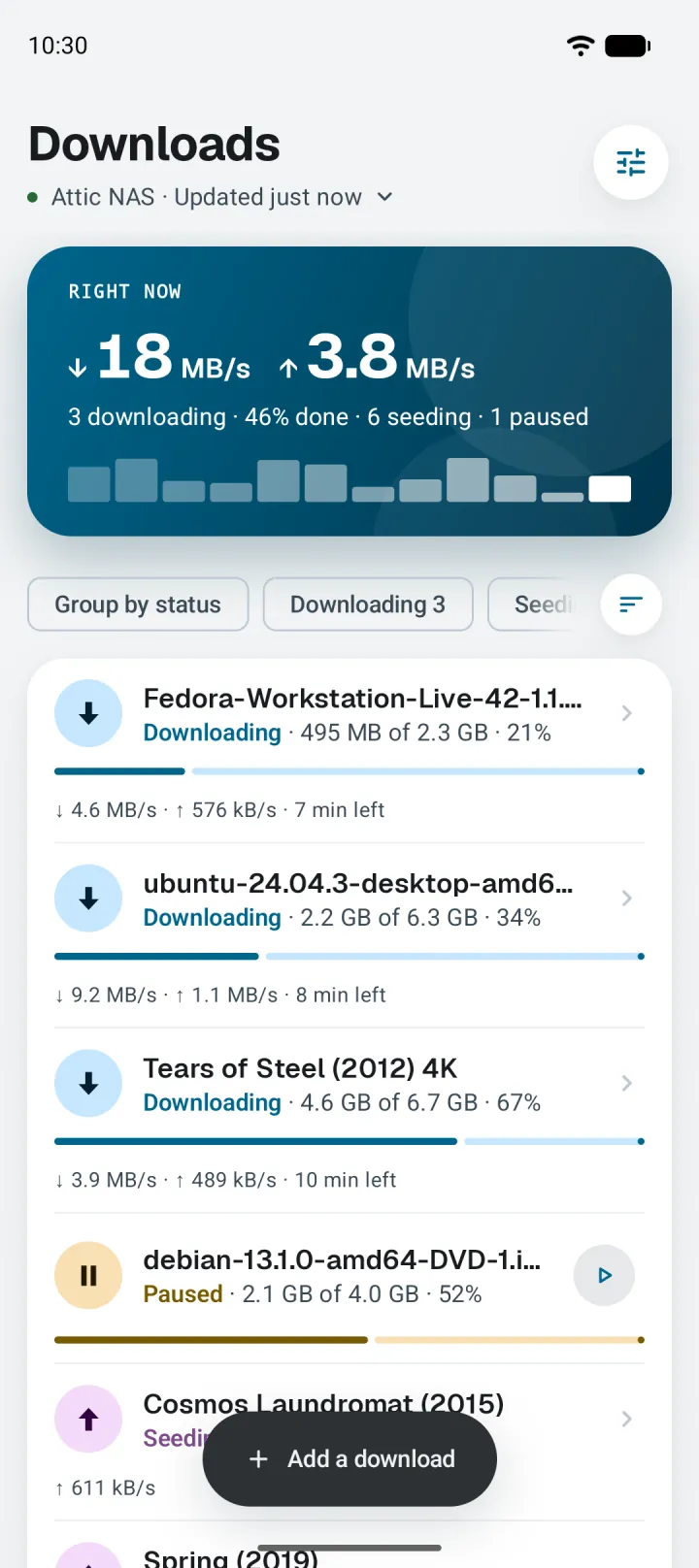
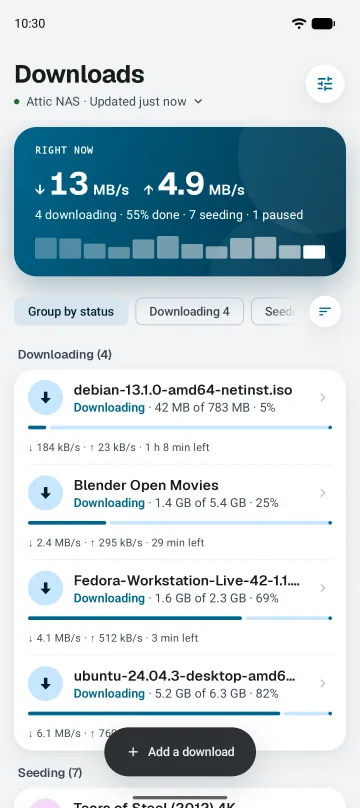
Speed, progress and time left come straight from Download Station, with a small chart of the last few minutes. Filter by status with one tap, or group the list so finished downloads stay out of the way.

  • Download and upload speed for the whole NAS at the top
  • Pause and resume right from the list
  • Add a download from here with one button
The Downloads screen: 18 MB/s down and 3.8 MB/s up, a speed chart, and a list of downloads with their progress.

Also in DropBay

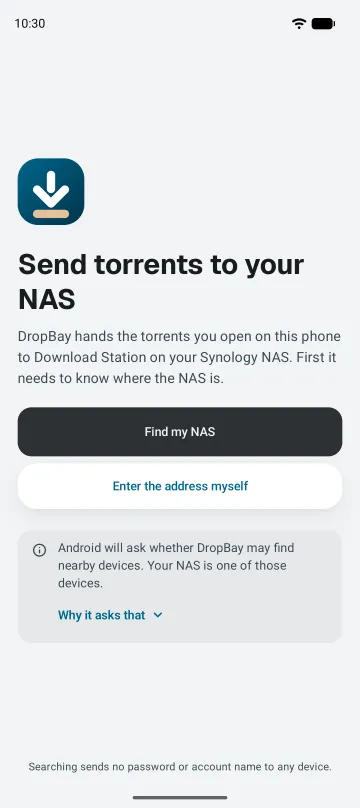
  • The welcome screen: Send torrents to your NAS, with a Find my NAS button.

    Finds your NAS for you

    DropBay looks for Synology units on your Wi‑Fi. The search sends no password or account name to any device.

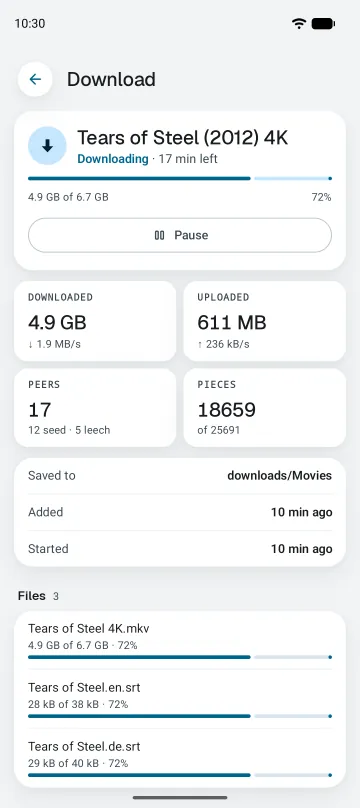
  • Details of one download: speed, peers, pieces, and the progress of each file.

    Everything about one download

    Speed, peers, pieces and each file's progress on one screen.

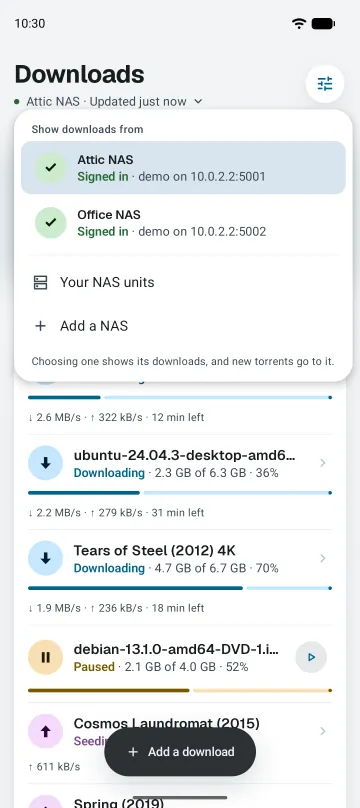
  • The NAS menu open over Downloads, listing Attic NAS and Office NAS.

    Several NAS units, one app

    Switch between them in one tap.

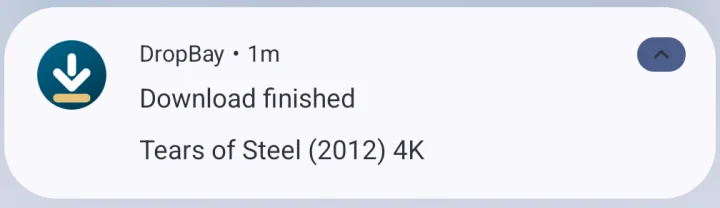
  • A Download finished notification from DropBay for Tears of Steel (2012) 4K, above the downloads list.

    Know when it's finished

    A notification when a download is done. The lock screen never shows its name.

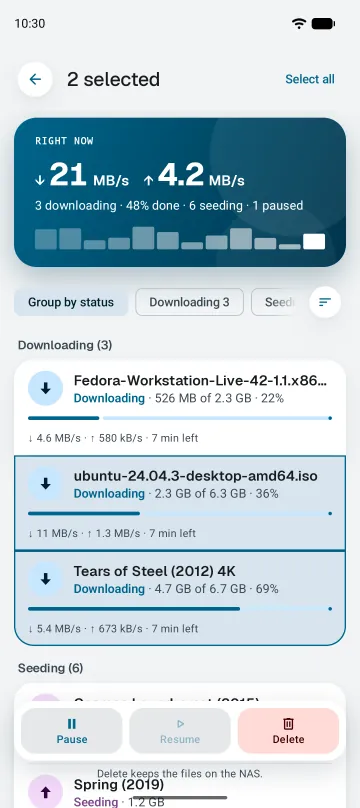
  • Two downloads selected, with Pause, Resume and Delete buttons at the bottom.

    Pause or delete many at once

    Delete removes the task and keeps the files on your NAS.

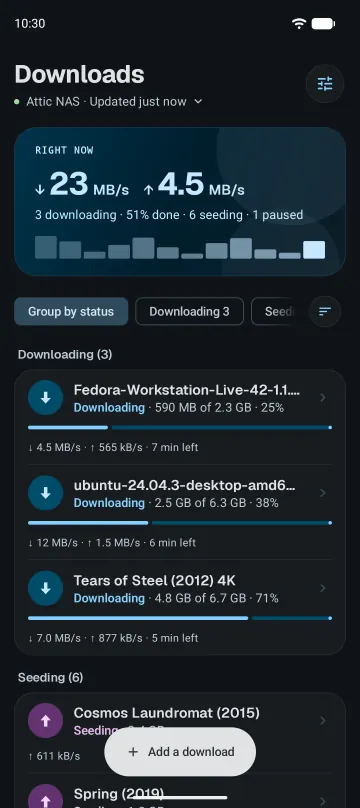
  • The Downloads screen in dark theme.

    Easy on the eyes at night

    Follows your phone's dark theme.

It talks to your NAS. Nobody else.

A NAS holds a lot of your life. DropBay treats the keys to it with care.

  • No account, no cloud

    DropBay connects straight to your NAS over HTTPS. There is no DropBay server in between, and nothing to sign up for.

  • Your password stays on the phone

    It is encrypted with a key held in your phone's secure hardware, and it is only ever sent to your NAS.

  • A refused password is never retried

    DSM can block an address after failed sign-ins, and that block may never lift by itself. DropBay stops and asks you instead of trying again.

  • You decide which certificates to trust

    If your NAS uses a self-signed certificate, DropBay asks before trusting it, then remembers that exact key.

Read the privacy policy

Questions

Something else? Write to dropbay@eperjes.com.

What do I need to use DropBay?

An Android phone with Android 8.0 or newer, and a Synology NAS running DSM 7 with the Download Station package installed. Your DSM account needs permission to use Download Station.

Does my phone download the files?

No. Your NAS does all the downloading. DropBay hands it the torrent or the link, then shows what Download Station reports. You can close the app or switch the phone off.

Can I use it away from home?

Yes, if your NAS can be reached over HTTPS from outside your home network, for example at an address like nas.example.com. DropBay can keep a home address and an outside address for the same NAS. It does not use QuickConnect.

Can I choose which files in a torrent to download?

Yes. DropBay lists every file in the torrent before it is added. Untick the ones you don't want and your NAS skips them.

Is DropBay a replacement for DS get?

It covers the same ground: sending torrent files and magnet links to Download Station from your phone. On top of that it lets you pick individual files, handles several NAS units and shows live speed.

Does DropBay search for torrents?

No. DropBay has no built-in search. Find a torrent wherever you like, then open it with DropBay.

Is there an iPhone version?

Not yet. An iOS version is planned for later.

Is DropBay made by Synology?

No. DropBay is an independent app and is not affiliated with Synology Inc.

Get DropBay

On Google Play, for Android 8.0 and newer.

Get it on Google Play